LovePDF vs Adobe Acrobat: Praxisleitfaden mit PDF zusammenführen (LovePDF)
Veröffentlicht
Redaktioneller Leitfaden zu „LovePDF vs Adobe Acrobat“ — Checkliste, Tipps und direkter Link zu PDF zusammenführen bei LovePDF.
Dieser Leitfaden zu LovePDF vs Adobe Acrobat fasst typische Büro-Workflows zusammen: Dateien im Browser hochladen, einmal verarbeiten und das Ergebnis prüfen. Öffnen Sie PDF zusammenführen auf LovePDF — ohne Installation.
Praktische Checkliste
- Originale behalten bis zur visuellen Prüfung.
- Dateien nummerieren (01-, 02-), wenn der Dialog alphabetisch sortiert.
- Nach dem Download in einem zweiten PDF-Viewer öffnen.
Adobe Acrobat remains the reference for regulated PDF workflows, digital signatures, and redaction. Many day-to-day tasks — merging annexes, splitting a chapter, compressing a scan, or converting Word to PDF — do not require a subscription if output quality and privacy expectations match a browser tool.
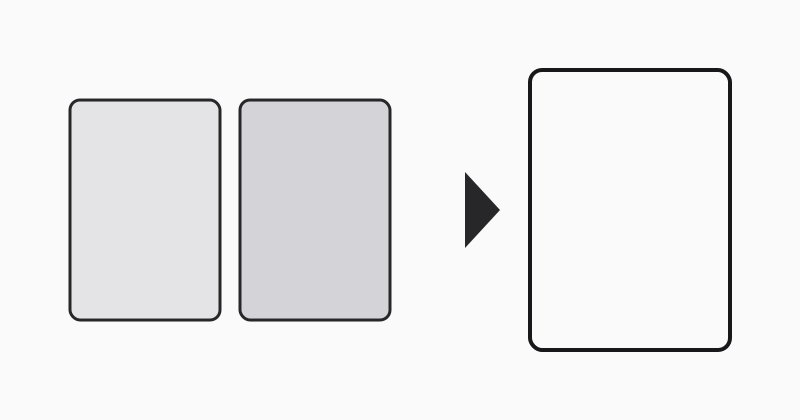
What LovePDF covers for free
LovePDF focuses on fast, repeatable jobs: merge PDF, split by page range, compress, Office conversions, and image exports. No account is required for standard uploads.
When Acrobat still wins
Legal redaction, certified signatures, accessibility remediation, and batch automation across thousands of files are Acrobat territory. If your compliance checklist names Acrobat specifically, keep desktop or Document Cloud for those steps and use LovePDF for ad-hoc prep.
Practical hybrid workflow
Merge and compress in LovePDF, then open the final PDF in Acrobat only if you must apply signatures or policy stamps. That split often saves subscription seats for teams that mostly combine and share documents.
Dieses Tool testen
PDF zusammenfügenVerwandte Themen-Hubs
Kurze Guides zu Suchen, die zu diesem Artikel passen — jeweils mit vorgeschlagenem PDF-Tool.