Remove blank scanner backs from duplex PDFs before the file goes outside your team
Published
Duplex scan jobs often add empty reverse pages. Removing them makes the document cleaner, shorter, and easier to review.
Office scanners and copier workflows often run in duplex mode by default. That is useful for mixed paper stacks, but it also produces a familiar mess: every real page may be followed by a blank reverse page, especially when the originals were single-sided. The resulting PDF is technically complete, yet it feels sloppy, doubles scroll effort, and leaves clients or reviewers wondering whether pages are missing between the blanks.
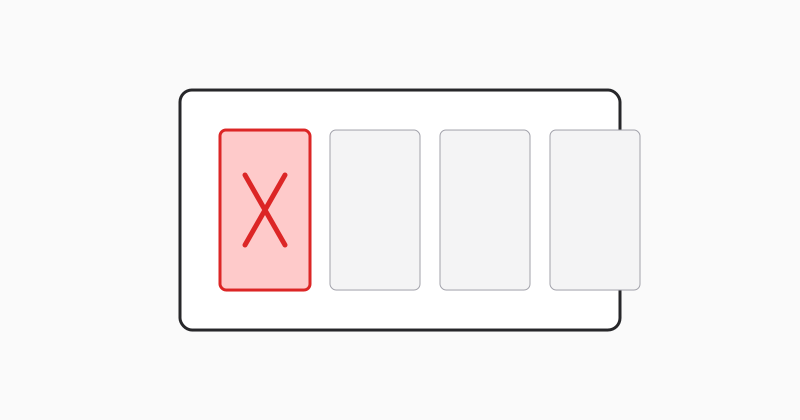
Identify the blank-page pattern first
In many duplex scans, the blanks follow a predictable rhythm, such as every second page after the opening sheet. Once you confirm the pattern, removing those pages is much faster than scrolling and checking one by one. A quick page-count comparison before and after export also helps confirm that you removed only the empty backs and not the real content pages.
Clean files improve trust when documents leave your organization
Blank pages do not just waste space. They make a file feel unreviewed. If the PDF is going to a client, legal team, or external reviewer, a cleaned version communicates that the packet was prepared deliberately and is ready for use.
Use LovePDF remove pages for the cleaned copy
Open Remove pages, upload the scanned PDF, enter the repeating blank-page ranges, and export the trimmed version. Keep the raw scan separately if your process requires a full capture archive.
Try this tool
Remove pagesRelated topic hubs
Short guides around searches that match this article — each links to a suggested PDF tool.